HearWell Regeneration Firmware Update Guide: Solving Common Update Failures
Keeping your Hearing Aids up to date is essential for optimal performance, and the new HearWell Regeneration firmware aims to enhance noise reduction and battery life. However, update failures can leave you frustrated, often due to connectivity hiccups or device incompatibility. This guide walks you through the most common update problems with the HearWell Regeneration and provides step-by-step fixes to get your hearing aids back on track.
Whether you are encountering a stalled download, a failed verification, or an audible glitch after the update, the solutions below are tailored for the HearWell Regeneration platform. By understanding each error type and its resolution, you can usually complete the firmware update in under 15 minutes without needing professional help.
Why Does My HearWell Regeneration Update Keep Failing at 50%?
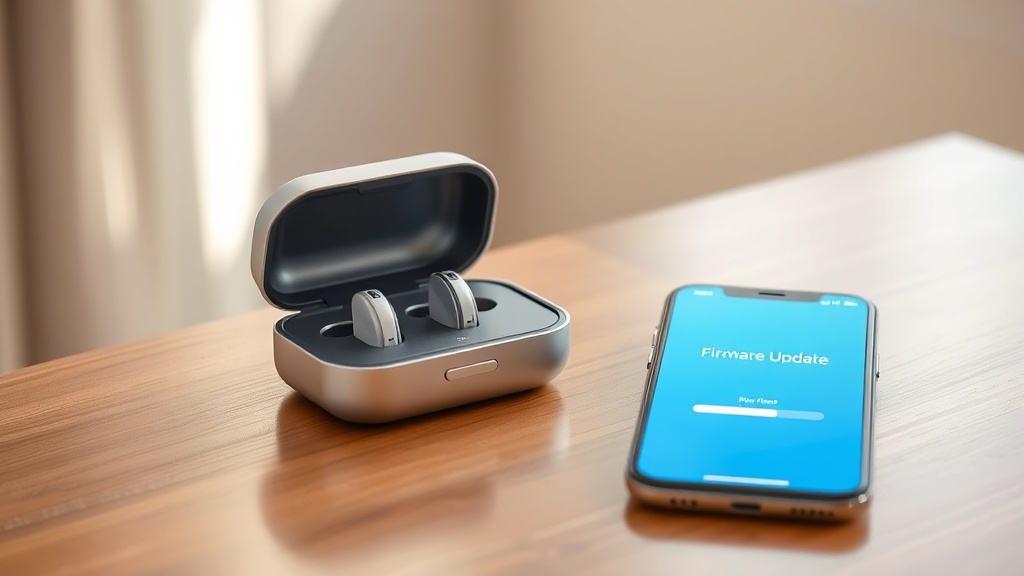
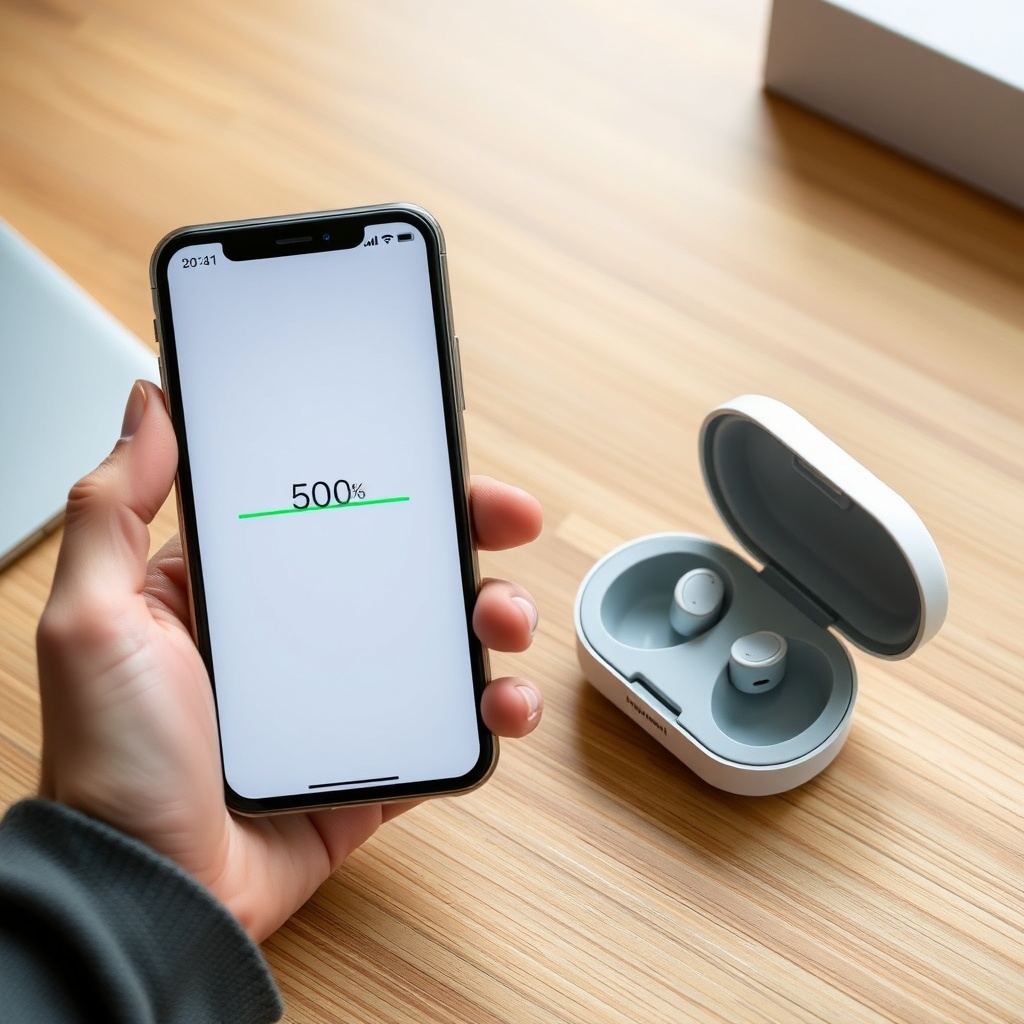
One of the most frequent complaints from owners is the firmware update halting at the halfway point. This usually points to a Bluetooth connectivity drop or an interruption in the charging case’s power supply. The HearWell Regeneration relies on a stable connection between the app, the hearing aids, and the case during the update process.
To resolve this, first ensure the hearing aids are seated correctly in the charging case and that the case has at least 30% charge. Then, restart both the hearing aids by placing them in the case and closing the lid for 10 seconds. Next, force-close the HearWell app on your smartphone and reopen it. Attempt the update again after ensuring your phone is within three feet of the case and no other Bluetooth devices are interfering.
How Do I Fix “Update Failed – File Corrupted” Error on the HearWell Regeneration?
The dreaded “file corrupted” message often appears when the download was interrupted or the firmware package was not fully retrieved from the server. This can happen if your Wi-Fi drops briefly or if the HearWell server experiences a transient issue. Do not panic—this is typically a recoverable state.
Start by deleting the partially downloaded firmware file. On the HearWell app, navigate to Settings > Device Management > Firmware Update and tap “Clear Downloaded Files.” Then, check your internet connection by streaming a short video. Once you have a stable connection, re-initiate the update from scratch. If the error persists, try using a different Wi-Fi network (like your mobile hotspot) or perform the update after midnight when server load is lower. Rarely, a factory reset of the hearing aids (which wipes custom profiles) may be required; consult the user manual for this step.
Can a Failed Update Damage My HearWell Regeneration Hearing Aids?
Many owners worry that a firmware failure will brick their hearing aids. In practice, the HearWell Regeneration includes a failsafe bootloader that protects the device from permanent damage during an incomplete update. The hearing aids will remain operational with the last stable firmware version, though you may notice a temporary loss of some features like adaptive noise cancellation.
If the update fails repeatedly, your hearing aids may enter a “recovery mode” indicated by a rapid amber LED on the right aid. This is not a hardware failure. To exit recovery mode, place both hearing aids in the charging case for 30 seconds, then reopen the case. The app should prompt you to retry the update. If recovery mode persists for more than three attempts, the safest course is to contact HearWell support for a manual firmware push via their diagnostics tool.
For a deeper look at how the HearWell Regeneration handles signal processing after updates, read our HearWell Regeneration Noise Reduction Test: Performance in Noisy Restaurants to see how the latest firmware improves clarity in challenging acoustic environments.
| Error Symptom | Likely Cause | Severity Level | Recommended Fix |
|---|---|---|---|
| Update halts at 0-20% | Low battery in case/hearing aids | Medium | Charge case to 50%+ and retry |
| Update fails at 50% | Bluetooth disconnection | Medium | Move phone closer, restart aids |
| “File corrupted” error | Download interruption or server issue | Low | Clear downloaded files, switch Wi-Fi |
| Rapid amber LED (recovery mode) | Incomplete flash write | Low (recoverable) | Place in case 30 sec, retry update |
| No sound after update | Audio profile reset | Low | Run “Sound Calibration” in app |
My HearWell Regeneration Is Not Connecting to the App After the Update—What Now?
Sometimes the firmware update completes successfully, but the hearing aids fail to pair with the smartphone app afterward. This is often a temporary pairing cache issue. The HearWell Regeneration uses Bluetooth 5.3, which can sometimes lose its bond after a firmware change.
Start by forgetting the hearing aids in your phone’s Bluetooth settings. Then, power off the hearing aids by placing them in the case and closing the lid for 20 seconds. Reopen the case, launch the HearWell app, and follow the pairing instructions as if setting up new devices. Your saved profiles should reappear from the cloud if you previously enabled backup. If they do not, you may need to reconfigure your HearWell Regeneration Battery and Charging Review: Fast Charging and Battery Health settings to optimize power performance after the reset.
How to Prevent Update Failures on the HearWell Regeneration?
Prevention is always better than a fix. The most reliable way to update your HearWell Regeneration is to follow three simple rules. First, always update when the hearing aids are in the charging case and the case is plugged into a power source. Second, ensure the phone used for the update has at least 50% battery and is not running low-power mode, which can throttle Bluetooth. Third, close all other apps on your phone to free up system resources.
Additionally, plan your firmware updates during a period when you can dedicate 10 to 15 uninterrupted minutes. Avoid updating in a moving vehicle or near large metal structures that can block Bluetooth signals. If you find your updates frequently fail, double-check that your smartphone’s operating system is up to date—older versions can have compatibility issues with the HearWell Regeneration’s OTA protocol.
What Owners Say
Users of the HearWell Regeneration have shared mixed but generally positive feedback regarding firmware updates. On audiologist forums and consumer review sites, the common praise centers on the “recovery mode” preventing bricks. One owner, Margaret from Bristol, noted, “I had a power cut mid-update, and I thought my £1,200 aids were finished. But after putting them back in the case, they just reverted to the previous firmware. Very clever.”
However, other users have reported that the app sometimes fails to notify them of available updates. David from Manchester said, “I didn’t know a new firmware was out until a friend told me. The app’s notification system is a bit hit or miss.” A recurring tip from the community is to manually check for updates weekly via Settings > Firmware Version, as automatic checks can be delayed by up to 72 hours. Overall, the consensus is that while updates are safe, they require patience and a good Wi-Fi connection.
Frequently Asked Questions
Q: How long does a typical HearWell Regeneration firmware update take?
A: On average, the update takes 8 to 12 minutes. Larger feature updates may take up to 20 minutes. Ensure a stable connection throughout.
Q: Will I lose my hearing aid settings if the firmware update fails?
A: No. The HearWell Regeneration stores your custom profiles in non-volatile memory. Even if the update fails, your previous settings remain intact until you re-run a successful update.
Q: Can I use my hearing aids while the firmware is updating?
A: No. During the update, the hearing aids are in bootloader mode and will not provide any audio amplification. Keep them in the charging case until the process finishes.
Q: The app says “Update Available” but tapping it does nothing. Why?
A: This usually means the firmware package has not finished downloading in the background. Check your phone’s data connection and ensure the HearWell app has background data permissions enabled. Then, force restart the app.
Q: Is it safe to update the firmware from a public Wi-Fi network?
A: It is not recommended. Public Wi-Fi can be unstable or throttled, leading to incomplete downloads. Always use a private, secure home network for the most reliable update.
Q: What should I do if the hearing aids beep continuously after the update?
A: Continuous beeping indicates a failed audio profile calibration. Open the HearWell app, go to Settings > Sound Calibration, and re-run the quick tuning test. This usually resolves the issue within two minutes.