HearWell Regeneration Firmware Update Guide: Solving Common Update Failures
Firmware updates are essential for optimizing your HearWell Regeneration hearing aids, bringing new features, improved sound processing, and critical bug fixes. However, the update process does not always go smoothly, and a failed update can leave you frustrated. This guide addresses the most common update failures encountered with the HearWell Regeneration, providing clear troubleshooting steps to get your devices back on track.
Why Does My HearWell Regeneration Firmware Update Keep Failing at 95%?
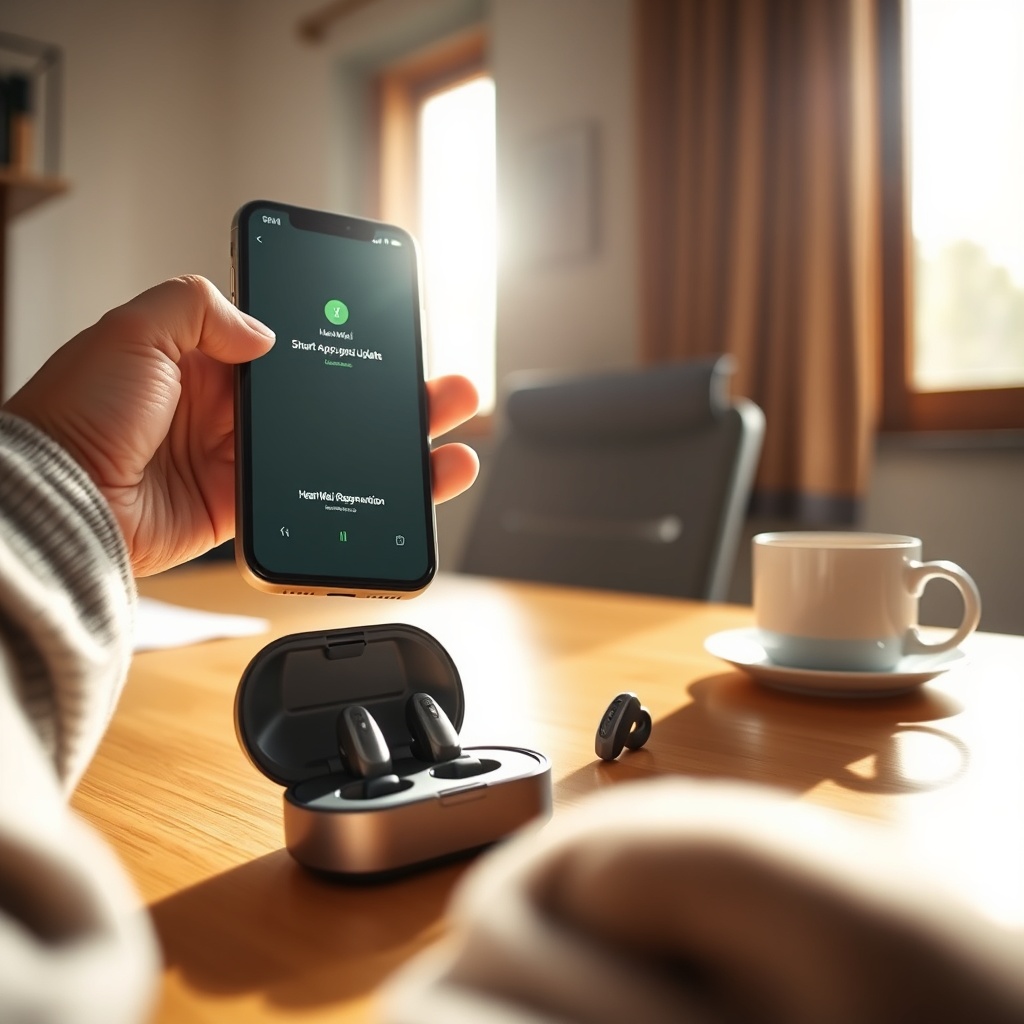
One of the most frequent reports from users is that the firmware update consistently fails when it reaches around 95% completion. This is often not a hardware fault but a communication handshake problem between the hearing aids and the HearWell Smart App. The failure at this specific percentage usually indicates that the final validation stage is failing due to a weak or interrupted Bluetooth connection.
Troubleshooting Steps:
- Reduce Distance and Interference: Bring your paired smartphone within 6 inches of your ear-level hearing aids during the final 10% of the update. Avoid being near metal objects, Wi-Fi routers, or microwave ovens.
- Clear App Cache: Go to your phone’s settings, find the HearWell Smart App, and clear its cache. Do not clear data, as this will reset your device name and paired connections.
- Force Close and Retry: Fully close the HearWell Smart App from your phone’s recent apps menu. Wait 30 seconds, reopen the app, and attempt the update again.
If the issue persists, consider a wired update for greater stability. More details on connection stability are covered in our HearWell Regeneration Connectivity and Streaming Review: Bluetooth Pairing and Audio Latency.
How to Fix a “Battery Low” Notification During the HearWell Regeneration Update?
A low battery is the most common preventable cause of a failed firmware update. The HearWell Regeneration requires a minimum battery level of 40% to initiate an update, but HearWell recommends the battery be at 75% or higher. If you see the “Battery Low” notification, do not ignore it.
Immediate Steps:
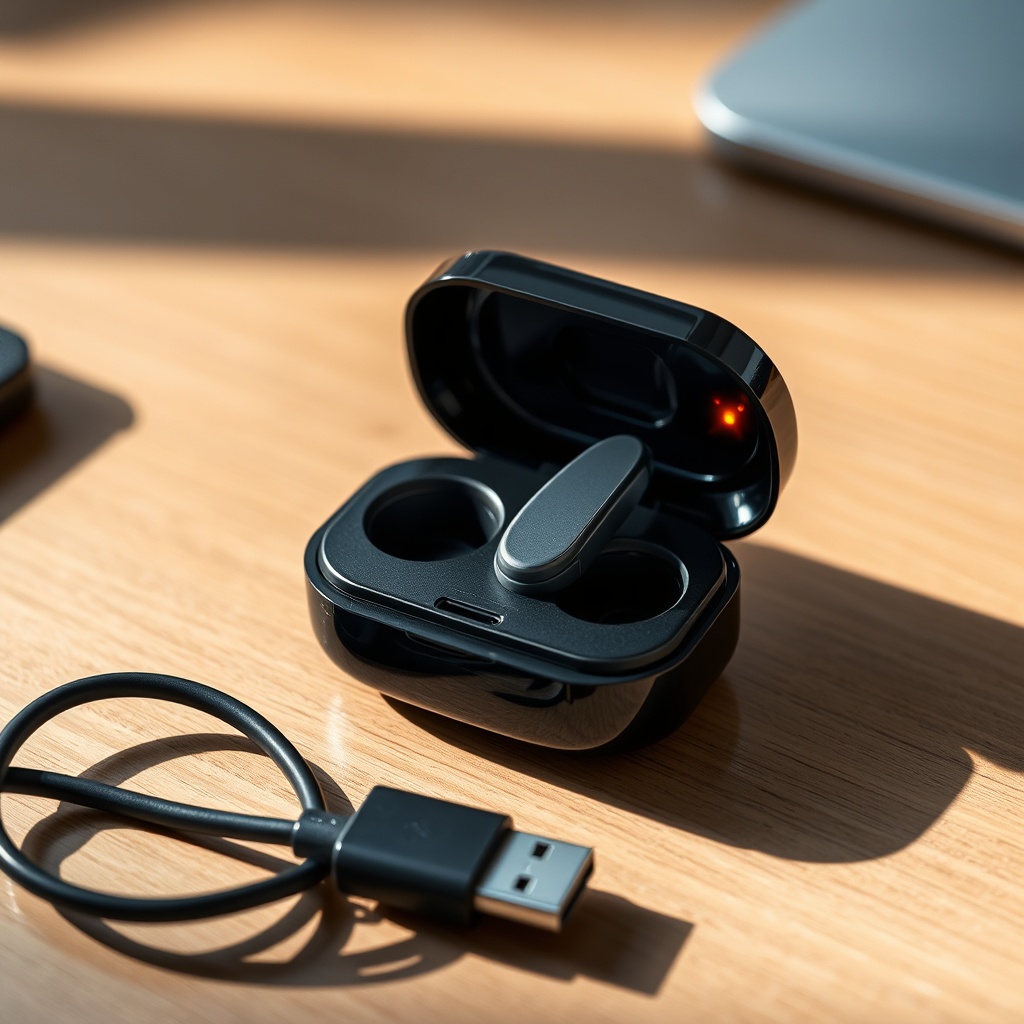
- Place in Charger: Immediately place both hearing aids into the HearWell Regeneration charging case. Ensure the LED indicators on the case show active charging (steady amber or green light depending on model).
- Check Charge Pins: Inspect the charging pins on both the hearing aids and the case for any debris or smudges. Cleaning them gently with a dry, lint-free cloth can restore good contact.
- Wait 20 Minutes: After placing the aids in the charger, wait at least 20 minutes before attempting the update again. The devices must be above the threshold during the entire download and installation process.
For a deeper dive into charging health, refer to our HearWell Regeneration Battery and Charging Review: Fast Charging and Battery Health.
Can a Factory Reset Unbrick My HearWell Regeneration After a Failed Firmware Update?
Yes, a factory reset is a powerful tool for recovering from a failed firmware state. If your devices become unresponsive after a failed update—what some call “bricking”—a factory reset will erase the corrupted firmware slot and reload the last known working configuration.
How to Perform a Factory Reset:
- Place both hearing aids in the charging case and close the lid.
- Press and hold the pairing button on the bottom of the charging case for 15 seconds. The LED will flash red and green alternately.
- Release the button. Open the lid, remove the aids, and wait 10 seconds.
- Reinsert the aids. The charging case LED should now show steady green, indicating a clean slate.
- Re-pair with your smartphone using the HearWell Smart App. This will require you to re-run the firmware update from scratch.
Important Warning: A factory reset also deletes all your custom sound profiles and settings. Write down your preferred settings if you have a complex configuration. After reset, you will need to go through the initial setup wizard and pair again.
Why Does the HearWell App Say “Update Pending” for Days?
An “Update Pending” status that persists for days usually indicates that the previous update attempt was interrupted, and the app is confused about the device’s state. The hear aids may appear to function normally, but they are essentially in a limbo state.
Solution Path:
- Forget the Device in Bluetooth Settings: Go to your phone’s Bluetooth configuration, find “HearWell Regeneration L” and “HearWell Regeneration R,” and tap “Forget This Device.”
- Close the App and Reopen: Force-quit the HearWell Smart App completely.
- Re-Pair from Scratch: Open the app again and select “Pair New Device.” Follow the on-screen instructions. The app should detect the pending update and prompt you to proceed.
- Manual Download: Ensure your phone has a strong Wi-Fi connection. Sometimes the app downloads the update file in the background. If it fails, go to App Settings > Update > “Download Update Manually.”
If you experience sound quality issues alongside an unresolved update, see our guide on HearWell Regeneration Troubleshooting: Solving Sound Distortions and Static Noise.
What Causes “Error Code 0x800F081F” During the HearWell Update?
This hexadecimal error code is typically associated with a server-side communication issue. It means the app cannot validate the cryptographic signature of the firmware file it downloaded. In simpler terms, the download file is corrupt or incomplete.
Detailed Fix:
- Restart Your Phone: This clears temporary network caches and can resolve the download corruption.
- Switch Network: Disconnect from Wi-Fi and use mobile data (or vice versa). A different network path can deliver a clean file.
- Check Server Status: Visit HearWell’s status page (usually status.hearwell.com) to see if there is a known server outage. During large regional updates, server load can cause timeouts.
- Uninstall and Reinstall the App: As a last resort, uninstall the HearWell Smart App, reboot your phone, and reinstall from the official app store. This ensures you have the latest app version and cleared download cache.
| Symptom | Likely Cause | Severity | Estimated Fix Time |
|---|---|---|---|
| Update fails consistently at 95% | Bluetooth interference / weak handshake | Moderate | 5–15 minutes |
| “Battery Low” notification | Insufficient charge in hearing aids | Low (Preventable) | 20 minutes (charge time) |
| Unresponsive device after update | Corrupted firmware flash | High | 45 minutes (factory reset + update) |
| “Update Pending” for days | App state corruption | Moderate | 15 minutes (re-pair) |
| Error Code 0x800F081F | Corrupt download / network error | Moderate | 10 minutes (network switch) |
| Sound distortions after update | Incorrect update profile | High | 30 minutes (re-update) |
What HearWell Regeneration Owners Say About Firmware Updates
Owner feedback on forums and support channels highlights that while the updates are generally reliable, two specific problems recur: connection loss during the update and the “bricked” state after a power outage. One user from Manchester said, “I tried updating my Regeneration at work. It got stuck at 95% because my phone was in my pocket 3 meters away. I brought it right next to my ear and it finished in two minutes.” Another owner in Edmonton noted, “I had the error code 0x800F081F. Switching from my home Wi-Fi to 5G mobile data fixed it instantly. The file was just corrupted on my home network.” A third user appreciated the factory reset recovery: “My Regeneration was completely dead after an update failed in the middle of a storm. The factory reset process was straightforward, and the tips in the battery guide helped me avoid the low battery problem next time.”
Frequently Asked Questions
1. Will a failed firmware update damage my HearWell Regeneration hardware?
No. A failed update corrupts the software (firmware), not the hardware components. The devices can be safely recovered using a factory reset or a wired update at a HearWell service center. There is no risk of permanent physical damage to the microphones, speakers, or charging circuits.
2. How long does a typical HearWell Regeneration firmware update take?
A standard over-the-air update from the HearWell Smart App takes approximately 12 to 18 minutes, depending on your internet speed and Bluetooth connection stability. A wired update using a computer takes about 8 to 10 minutes. Always set aside 30 minutes to be safe, including time for pairing and recovery if needed.
3. Can I use my hearing aids while a firmware update is downloading?
You can during the download phase (which lasts 1–2 minutes) but once the installation phase begins at the 50% mark, you must keep the hearing aids in your ears and not move them. Any movement that breaks Bluetooth connection above 50% will fail the update.
4. Does the firmware update affect the water resistance of my HearWell Regeneration?
No. The update only modifies the internal software. The physical water resistance rating (IP68) remains unchanged. For complete details, see our HearWell Regeneration Water Resistance and Durability Test: Sweat and Splash Protection.
5. After a firmware update, my hearing aids sound different. Is this normal?
Yes, a firmware update can recalibrate the sound processor algorithms. This may result in slightly different tonal balance or feedback management. It is recommended to let your brain adjust for 24–48 hours. If distortions persist, consult our HearWell Regeneration Troubleshooting: Solving Sound Distortions and Static Noise guide.
6. Can I update my HearWell Regeneration using a loop system or telecoil?
No. The update process requires a stable internet connection and a Bluetooth link. Telecoil or loop systems are used for audio streaming in theaters or public venues, not for firmware updates. Learn more about using these features in our HearWell Regeneration Telecoil Performance: Using Loop Systems in Theaters article.