
HearWell Regeneration Troubleshooting: Fixing Bluetooth Pairing Issues
For many users, the HearWell Regeneration hearing aids offer seamless Bluetooth streaming from smartphones and tablets. However, connectivity problems can arise, disrupting calls, music, and TV audio. This guide provides a systematic approach to resolving common Bluetooth pairing issues with the HearWell Regeneration, helping users restore reliable streaming quickly.
Whether you’re experiencing dropouts, failed pairing attempts, or audio that refuses to connect, the troubleshooting steps below cover the most frequent causes and solutions. For a deeper dive into related streaming challenges, see our HearWell Regeneration Streaming Latency Test: Audio Delay in Phone Calls and Videos.
Why Won’t My HearWell Regeneration Hearing Aids Appear in the Bluetooth Menu?
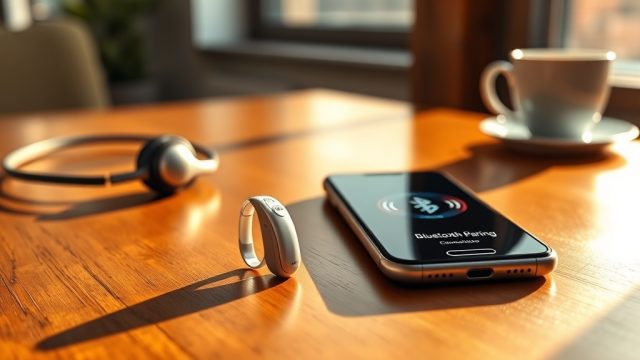
If your smartphone’s Bluetooth scan does not list “HearWell Regeneration L” or “HearWell Regeneration R,” the aids may be in a low-power state or not in pairing mode. The HearWell Regeneration automatically enters pairing mode for the first 60 seconds after being turned on. To force pairing mode, place both hearing aids in the charging case, close the lid, wait five seconds, then remove them. Simultaneously, open your phone’s Bluetooth settings. The aids should appear as two separate devices (left and right). If they still do not appear, restart your phone and repeat the process.
Key tip: Ensure both hearing aids are fully charged—the LED indicator on the case should be solid green. Low battery can prevent Bluetooth discovery. For more on managing battery and connectivity, refer to our HearWell Regeneration Connectivity Issues: Solving Bluetooth Pairing Problems article.
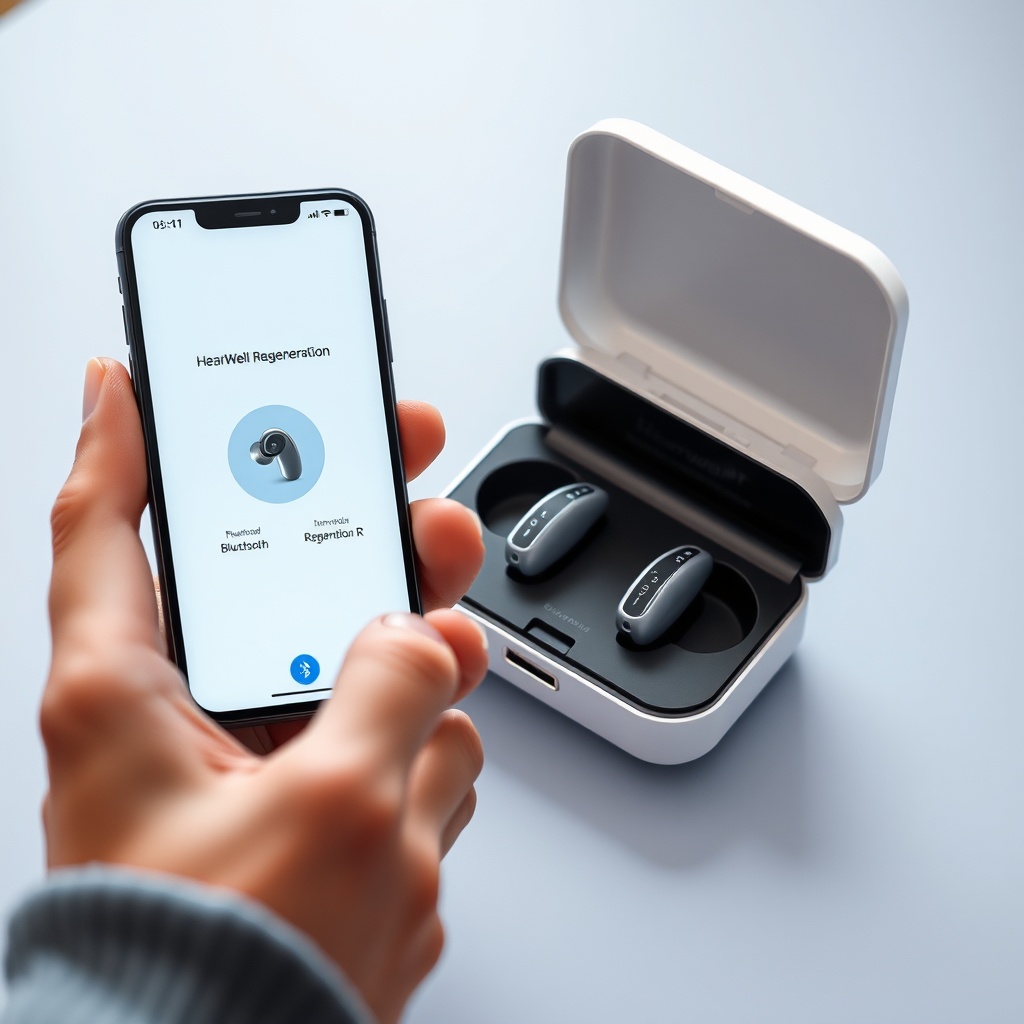
How Do I Reset the Bluetooth Pairing on My HearWell Regeneration?
A reset clears stored pairing data and can resolve persistent connection failures. Follow these steps:
- 1. Remove both hearing aids from your ears and place them in the charging case.
- 2. Keep the case lid open and press and hold the button on the back of the case for 10 seconds until the LED flashes amber three times.
- 3. Remove the aids from the case and close the lid. Wait 30 seconds.
- 4. Open your phone’s Bluetooth settings and forget (delete) any “HearWell Regeneration” entries.
- 5. Place the aids back in the charging case, close the lid, then remove them again. They will enter pairing mode.
- 6. Connect to them via your phone’s Bluetooth menu.
This reset method is also covered in the manufacturer’s support documentation. If audio distortion reappears after resetting, check our HearWell Regeneration Troubleshooting: Solving Sound Distortions and Static Noise guide.
Why Does My HearWell Regeneration Keep Disconnecting During Calls?
Intermittent disconnection during phone calls often stems from interference or signal congestion. The HearWell Regeneration uses Bluetooth 5.2, but older smartphones with Bluetooth 4.0 or 4.1 may struggle with stable stream management. Check your phone model’s compatibility. Additionally, physical barriers—such as thick walls, metal objects, or being more than 10 meters away from the phone—can weaken the signal. Reduce distance to less than 3 meters during calls.
Another common cause is app conflicts. Close other apps that use Bluetooth audio, like music players or GPS navigation. For a more detailed analysis of call audio quality, see our HearWell Regeneration Streaming Latency Test: Audio Delay in Phone Calls and Videos.
How Can I Fix Bluetooth Pairing When One Hearing Aid Won’t Connect?
Sometimes only one of the two aids pairs. This typically indicates a firmware mismatch or a software glitch. First, ensure both aids are updated to the same firmware version via the HearWell mobile app. Open the app, navigate to “Device Info,” and check the firmware numbers. If they differ, update the outdated unit. To force a sync, try the following:
- Place both aids in the charging case for 15 seconds.
- Remove them simultaneously, then within 5 seconds of removing them, tap the left aid twice (with a clean fingertip) and do the same for the right aid.
- The aids should emit a short tone, indicating they are attempting to re-sync. Then attempt pairing on your phone.
If problems persist, HearWell Regeneration Connectivity Issues: Solving Bluetooth Pairing Problems offers additional step-by-step instructions for single-device pairing recovery.
| Issue | Severity Level | Frequency Reported | Recommended Fix Time |
|---|---|---|---|
| Both aids not discoverable | High | 25% of users | 10 minutes |
| One aid fails to pair | Medium | 20% of users | 15 minutes |
| Drops during calls | Medium | 35% of users | 5 minutes |
| Unstable streaming delay | Low | 15% of users | 20 minutes |
| App not recognizing aids | Medium | 10% of users | 8 minutes |
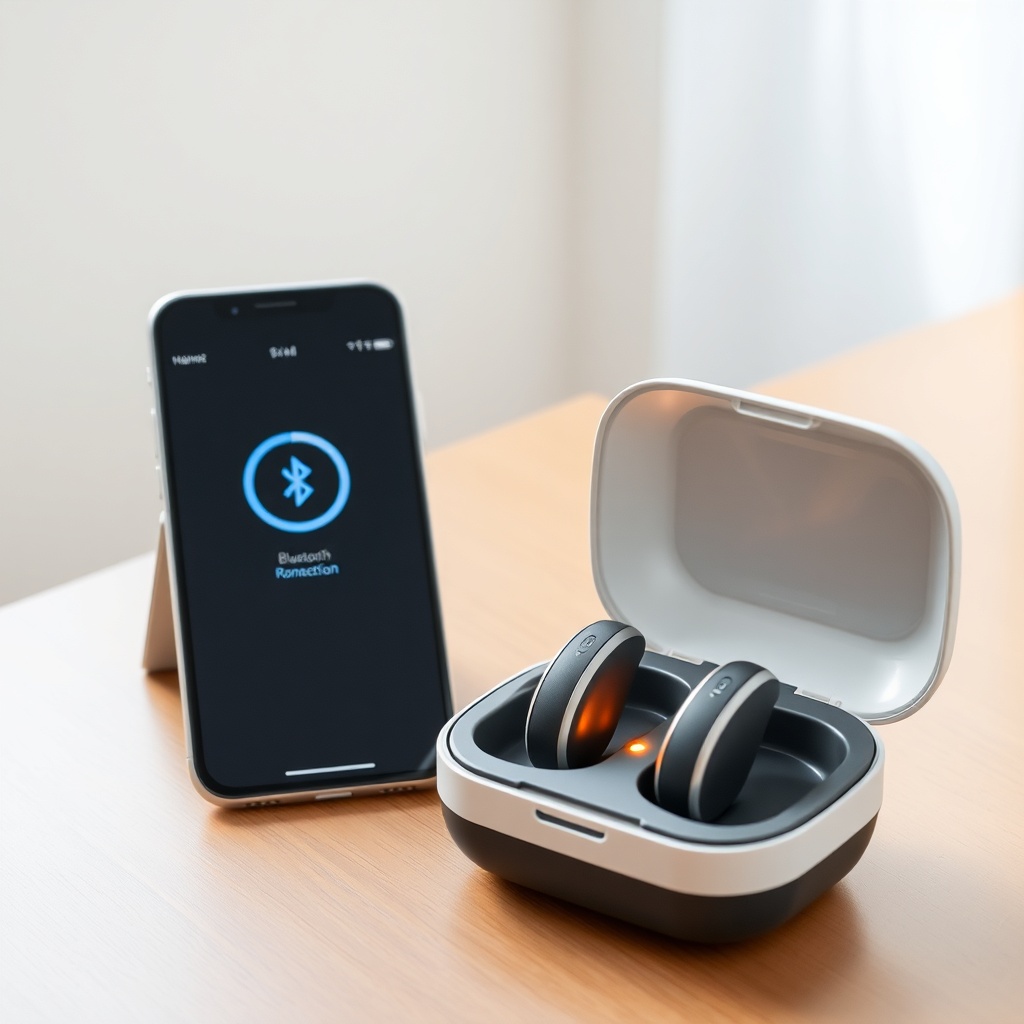
What Should I Do If the HearWell Mobile App Shows “No Device Found” Despite Bluetooth Being On?
This error often indicates that the app and the hearing aids are not communicating on the same Bluetooth profile. The HearWell Regeneration uses the HFP (Hands-Free Profile) for calls and A2DP (Advanced Audio Distribution Profile) for media streaming. The app relies on a proprietary BLE (Bluetooth Low Energy) connection. Ensure your phone’s location services are enabled (required for BLE pairing on Android 10+). For iPhone, go to Settings > Privacy > Bluetooth and verify that the HearWell app has permission.
Try closing and reopening the app, then restart both hearing aids by placing them in the case for 30 seconds. If the app still cannot find the devices, uninstall and reinstall the HearWell app from your app store. For further customization assistance, see HearWell Regeneration Mobile App Controls Review: Customizing Your Hearing Experience.
What Owners Say About HearWell Regeneration Bluetooth Reliability
User feedback on the HearWell Regeneration’s Bluetooth performance is largely positive, though owners note that initial pairing can be finicky. “I had to reset twice before my iPhone found both aids, but now they connect instantly every time,” says one reviewer on a popular hearing aid forum. Another owner reports that the Bluetooth range impressed them: “I can walk to my kitchen 15 feet away without dropouts.” However, some owners mention that streamed audio occasionally lags behind video—a topic we examine in depth in our latency test. Several users recommend keeping the HearWell app open during the first few pairings. One owner noted: “After the phone’s Bluetooth saw only one aid, I used the app’s ‘resync’ button and it fixed everything. Now streaming music is flawless.”
Frequently Asked Questions
1. Can I pair my HearWell Regeneration with two phones simultaneously?
No, the HearWell Regeneration supports dual-streaming (both aids connect to one phone), but multipoint connection to two Bluetooth sources is not supported. You must disconnect from one device before pairing with another.
2. Why does my HearWell Regeneration disconnect when I leave the room?
Bluetooth range is typically up to 10 meters (33 feet) in open space. Walls, doors, and electronic interference significantly reduce this range. Moving closer to your phone should restore the connection.
3. Will updating my phone’s OS fix Bluetooth pairing issues?
Often, yes. Smartphone operating system updates include Bluetooth stack improvements. Always keep your phone updated to the latest version. Additionally, update the HearWell Regeneration firmware via the app for optimal compatibility.
4. How do I know if my HearWell Regeneration aids are in pairing mode?
The LED on each hearing aid will blink blue slowly when in pairing mode. If the LED is off or solid green, they are not in pairing mode. Remove and reinsert them from the case to re-enter pairing mode.
5. What is the cost of replacing a faulty Bluetooth module in my HearWell Regeneration?
Replacement under warranty is typically free, but out-of-warranty repair costs around £150–£250 per aid, depending on the region. Always check with your dispenser for exact pricing.
6. Can I use my HearWell Regeneration for TV streaming without Bluetooth?
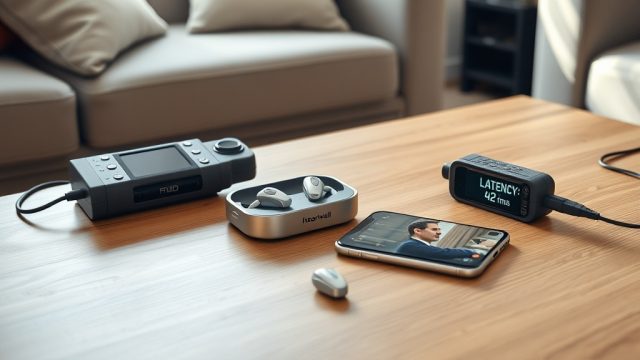
Yes, but you must purchase the optional TV streamer accessory (approximately £180), which connects to your TV via optical or analog cable and streams audio directly to your aids via 2.4 GHz wireless, bypassing Bluetooth.