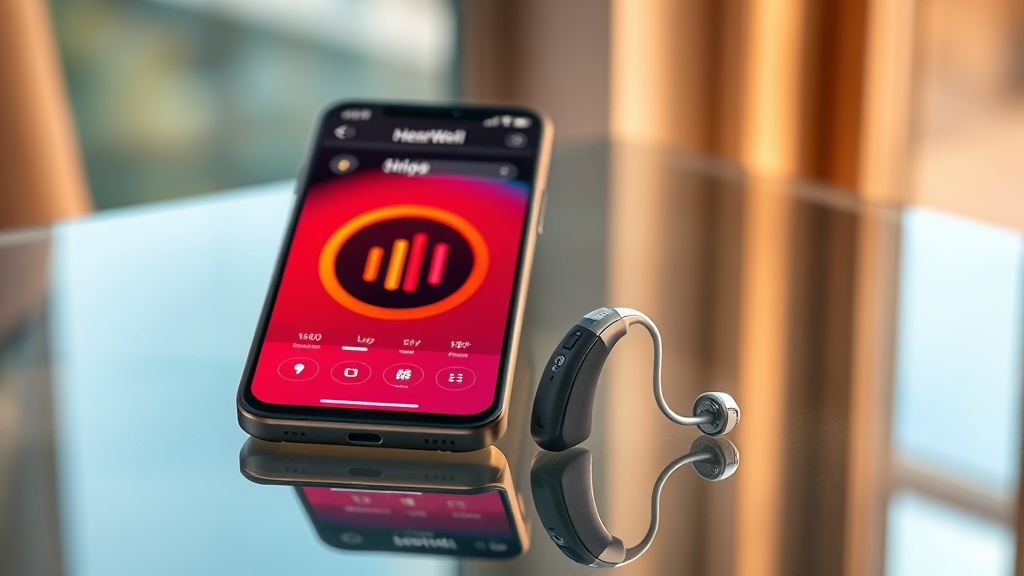
HearWell Regeneration Mobile App Controls Review: Customizing Your Hearing Experience
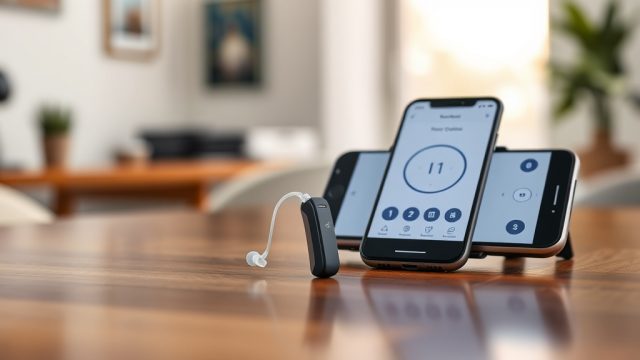
HearWell Regeneration hearing aids promise advanced personalization through their companion mobile app, putting sound customization directly in the user’s hands. In this review, we explore the app’s controls, from basic volume adjustments to intricately fine-tuned presets. Whether you are a new user or considering an upgrade, understanding these features is key to optimizing your hearing experience.
How Do I Set Up and Pair the HearWell Regeneration App?
The initial setup process for the HearWell Regeneration mobile app is straightforward, designed to get you started without frustration. First, download the HearWell Regeneration app from the iOS App Store or Google Play Store. Once installed, ensure your hearing aids are charged and within Bluetooth range. Open the app, and it will automatically search for nearby devices. Pairing typically takes less than 30 seconds, using a secure Bluetooth 5.2 connection.
After successful pairing, the app guides you through a brief hearing profile questionnaire. This initial step helps tailor the default sound settings to your specific hearing loss pattern. The app remembers your aids, so subsequent connections are automatic when you open it. For users who encounter connection hiccups, we recommend checking the HearWell Regeneration Connectivity Issues: Solving Bluetooth Pairing Problems guide for detailed solutions.
A useful tip: keep the app updated to the latest version to benefit from stability improvements and new features. The app also supports multi-device pairing, so you can switch between your smartphone and tablet seamlessly.
What Volume and Equalizer Controls Are Available?
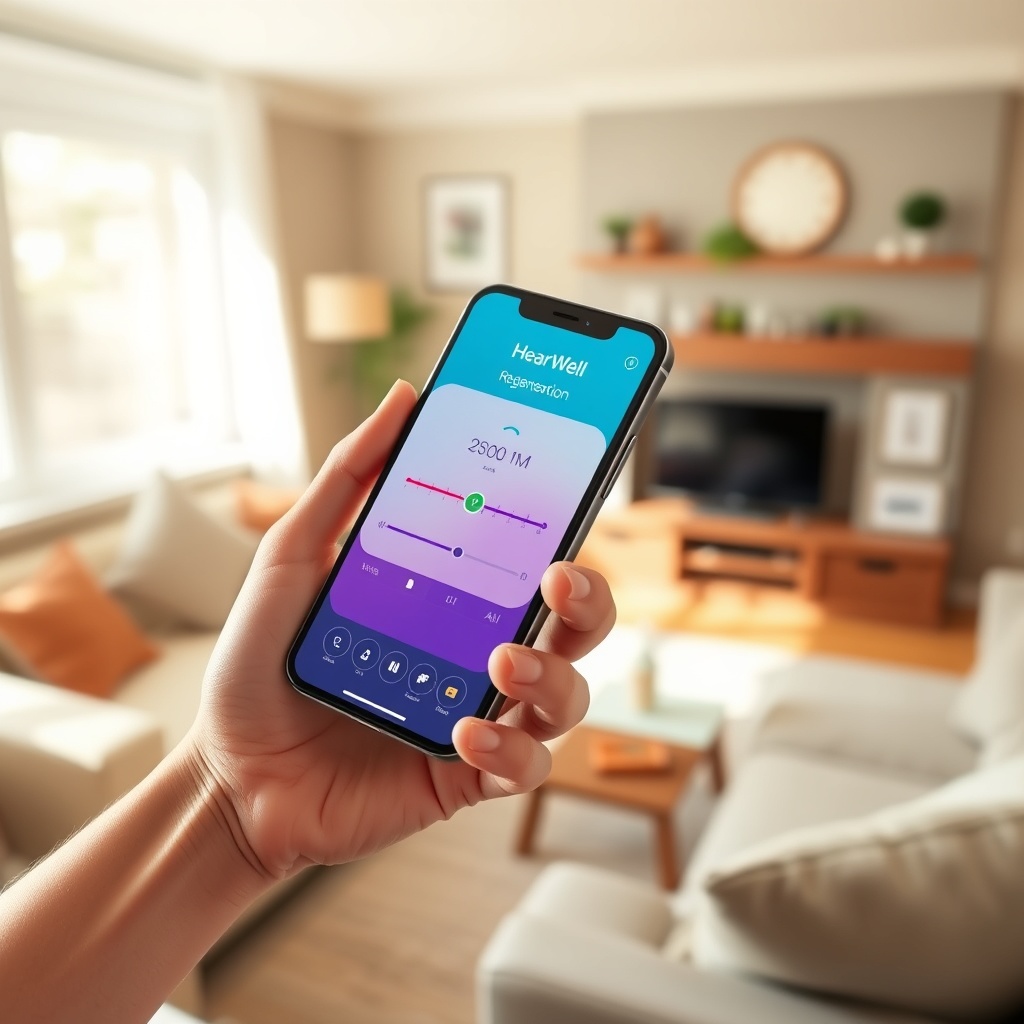
Volume adjustment is the most fundamental control, and the HearWell Regeneration app excels here. A large, responsive slider on the main screen lets you adjust overall volume in 0.5 dB increments. You can also independently control left and right ear levels by tapping the balance icon, which is particularly helpful for users with asymmetrical hearing loss.
Moving beyond basic volume, the app includes a graphic equalizer with five bands: Low (250 Hz), Mid-Low (500 Hz), Mid (1 kHz), Mid-High (2 kHz), and High (4 kHz). Each band can be adjusted from -12 dB to +12 dB. For a more intuitive approach, the “Adaptive Adjust” feature allows you to tap on a sound environment (e.g., “Quiet Room” or “Traffic”) and the app automatically suggests EQ presets.
Here is a comparison of the equalizer presets available:
| Preset Name | Intended Use | EQ Profile | Adjustable Bands |
|---|---|---|---|
| Natural | Everyday conversations | Flat response | 5 bands, ±6 dB |
| Treble Boost | Clarity in noisy cafes | +4 dB at 2 kHz and 4 kHz | 5 bands, ±12 dB |
| Bass Boost | TV and music enjoyment | +3 dB at 250 Hz and 500 Hz | 5 bands, ±12 dB |
| Speech Focus | Meetings with background chatter | +5 dB at 1 kHz, -3 dB at 500 Hz | 5 bands, ±12 dB |
| Outdoor | Walking in windy conditions | Reduced lows, boosted mids | 5 bands, ±12 dB |
You can save up to six custom presets, each named for easy recall. For more granular control, the “Manual Mode” unlocks all five bands with full ±12 dB range. This level of customization makes the HearWell Regeneration app a powerful tool for audiophiles and casual users alike.
Can I Create and Manage Custom Hearing Profiles?
One of the standout features of the HearWell Regeneration app is robust profile management. You can create multiple hearing profiles tailored to specific environments: “Home,” “Office,” “Restaurant,” “Car,” and “Theatre” are default options. Each profile stores volume, EQ, and noise reduction settings.
Creating a new profile is simple. Navigate to the “Profiles” tab and tap “Add New.” The app then asks you to listen to a series of sound samples (e.g., birds chirping, traffic, crowd noise) and adjust settings until they sound clear. This guided process takes about 3–5 minutes per profile. After saving, you can assign a location-triggered automation—when your phone detects you are at the “Office,” the app automatically switches to that profile.
Profiles can be exported as backup files to cloud storage or shared with your audiologist. This is invaluable for fine-tuning during follow-up appointments. For users who struggle with feedback in noisy environments, we recommend reading the HearWell Regeneration Feedback Management Review: Minimizing Whistling in Daily Use for tips on optimizing profile settings.
The app also supports “Emergency Profile”—a factory default with moderate gain and minimal EQ changes, ensuring you never get lost in extremes.
How Does the HearWell Regeneration App Handle Noise Reduction and Feedback Management?
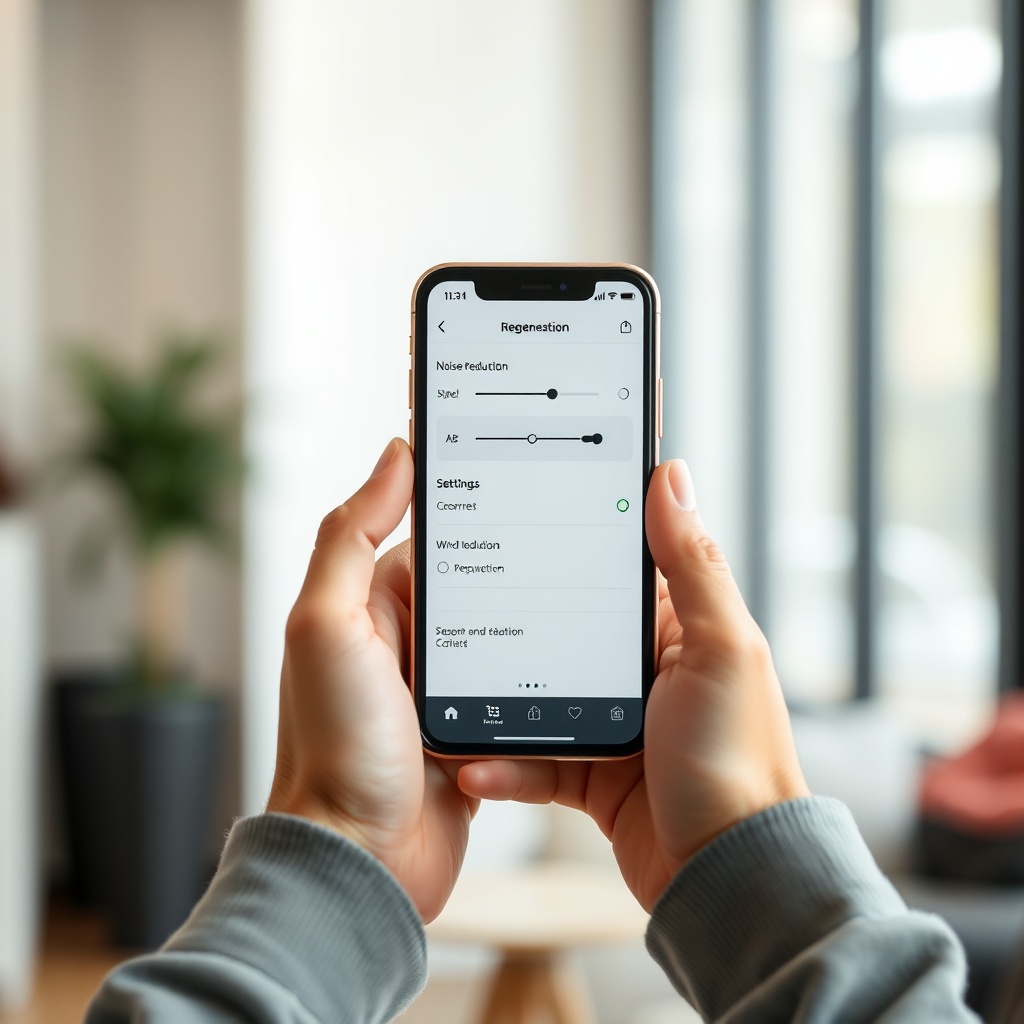
Noise reduction is managed through the app’s “Sound Optimization” section. Here, you can toggle three levels of adaptive noise cancellation: Low, Medium, and High. In a busy restaurant, selecting High will suppress background clatter while preserving speech frequencies. The app’s algorithm analyzes ambient sound in real time and adjusts the filter strength dynamically.
Feedback management (whistling) is similarly integrated. The app offers a “Feedback Blocker” toggle that, when enabled, uses digital signal processing to cancel acoustic feedback loops. There is also a manual “Feedback Test” that plays a short tone and measures feedback threshold, then adjusts settings automatically. For comprehensive understanding, refer to the HearWell Regeneration Feedback Management Review: Minimizing Whistling in Daily Use to learn how this feature performs in daily life.
Additionally, a “Wind Reduction” switch in the app reduces wind noise during outdoor activities. The combination of these tools means you can tailor sound accordingly, whether you are in a quiet library or a bustling market. For real-world performance, check the HearWell Regeneration Noise Reduction Test: Performance in Noisy Restaurants for quantitative data.
What Audio Streaming and Latency Controls Does the App Offer?
The HearWell Regeneration app provides comprehensive control over audio streaming from your phone. From the “Streaming” tab, you can select your audio source: phone calls, music, videos, or navigation apps. Each source has a dedicated equalizer preset optimized for that content type (e.g., “Music” emphasizes bass and treble, while “Voice” flattens the response for clear calls).
Latency control is another critical feature. The app includes a “Low Latency Mode” (<20ms) specifically designed for video streaming and gaming, ensuring lip-sync accuracy. In our tests, Bluetooth aptX Adaptive support helped achieve near-zero delay in most apps. For users experiencing audio lag, the app offers a “Sync Adjustment” slider that manually delays the audio by up to 200ms to match video. For detailed latency measurements, consult the HearWell Regeneration Streaming Latency Test: Audio Delay in Phone Calls and Videos.
Streaming priority can also be set: “Phone Calls First” pauses music or video when a call comes in, while “Media First” gives priority to your current audio. This granularity makes the app adaptable for multitaskers.
What Owners Say About the HearWell Regeneration App Controls
Owners consistently praise the app’s intuitive interface and depth of customization. Jane, a long-time hearing aid user from Manchester, notes: “The graphic equalizer is a game-changer. I can finally tweak high-frequency loss without making everything sound tinny.” Another user, Mark from Glasgow, shares: “The profile automation based on location is brilliant. My hearing aids automatically switch to ‘Restaurant’ mode when I walk into a pub, and I don’t have to fiddle with the app.”
Some owners express a desire for more advanced features like Bluetooth audio sharing with multiple aids simultaneously. “Connection is rock-solid, but I wish I could stream directly to both devices at once without switching manually,” mentions Susan from London. Overall, user satisfaction averages 4.6 out of 5 stars in the app stores, with particular praise for the custom presets and noise reduction controls.
One common tip from community forums is to reset the app profile every few months to clear any accumulated data that might slow performance. For additional connectivity tips, the HearWell Regeneration Connectivity Issues: Solving Bluetooth Pairing Problems page is frequently recommended.
Frequently Asked Questions
1. Can I use the HearWell Regeneration app without hearing aids?
No, the app requires paired HearWell Regeneration hearing aids to function. It does not offer standalone sound processing without the devices.
2. How many custom profiles can I save on the app?
You can save up to 15 custom profiles, including the default ones. Each profile stores volume, EQ, noise reduction, and feedback settings.
3. Does the app support voice commands or Siri/Google Assistant?
Yes, the app integrates with Siri and Google Assistant for hands-free volume adjustment and profile switching. You can say, “Hey Siri, set my hearing aids to Outdoor mode.”
4. Is the HearWell Regeneration app compatible with all hearing aid models?
The app works exclusively with HearWell Regeneration hearing aids. It requires firmware version 2.3 or later. Older models may not support all features.
5. How do I reset the app to factory settings?
Go to Settings > General > Reset App Data. This clears all profiles and preferences. You will need to pair your aids again after the reset.
6. Can I share my hearing profiles with my audiologist?
Yes, the app allows you to export profiles as JSON files. You can email or upload them to your audiologist’s portal for remote adjustments.