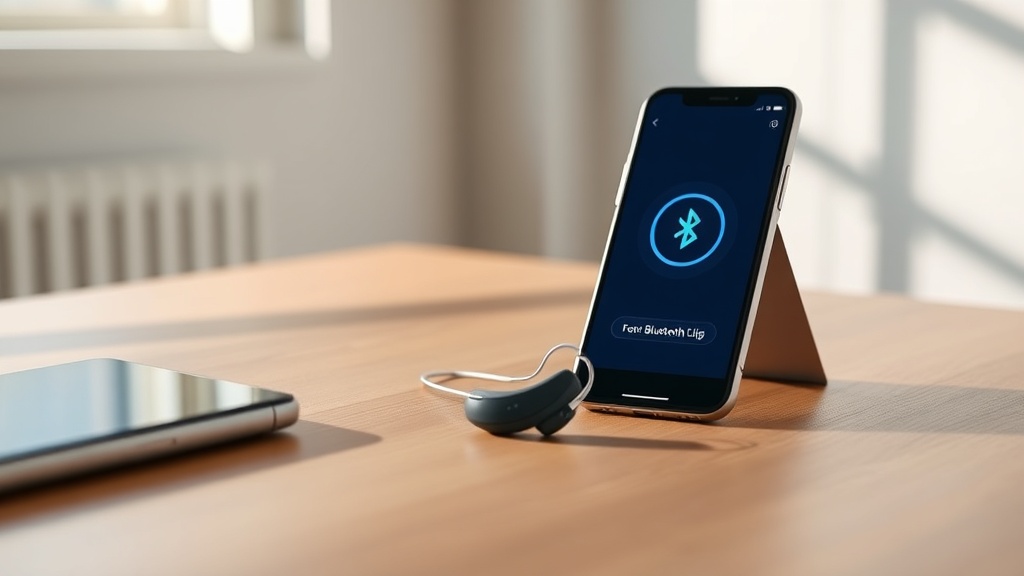
HearWell Regeneration Connectivity Issues: Solving Bluetooth Pairing Problems
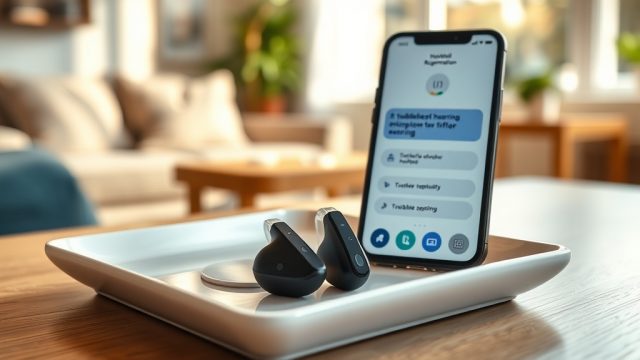
HearWell Regeneration hearing aids offer advanced Bluetooth connectivity for streaming calls, music, and TV audio directly to your ears. However, users occasionally encounter pairing disruptions that can frustrate daily use. This article provides a comprehensive troubleshooting guide to resolve common Bluetooth pairing problems, keeping your HearWell Regeneration devices seamlessly connected to your smartphone or tablet.
Why Won’t My HearWell Regeneration Connect to My Phone Initially?
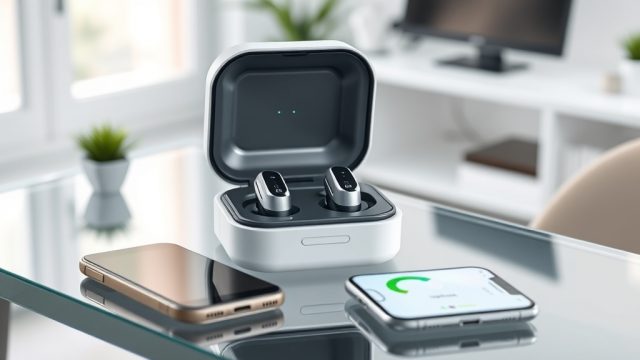
When you first attempt to pair your HearWell Regeneration hearing aids with a smartphone, the process should be straightforward, but several factors can block initial connection. The most common cause is that the hearing aids are not in pairing mode. Ensure both hearing aids are powered on and placed in the charging case. Open the case lid, then press and hold the button on the back of the case for three seconds until the LED flashes blue.
Another frequent issue is smartphone Bluetooth cache corruption. Go to your phone’s Bluetooth settings, find any previous “HearWell Regeneration” entries, and select “Forget This Device.” Then restart your phone and try pairing from scratch. Check that your phone’s operating system is updated to the latest version—iOS 16+ or Android 12+ are recommended for full compatibility.
How to Fix Intermittent Dropouts During Streaming
Intermittent audio dropouts while streaming music or calls can be annoying. This often stems from signal interference or distance from the source device. Keep your smartphone within 10 meters (30 feet) and avoid placing it in a pocket or bag on the opposite side of your body. Physical obstacles like walls or metal structures can weaken the signal.
Another solution is to reset the Bluetooth module on your HearWell Regeneration devices. Place the hearing aids in the charging case, close the lid, wait 10 seconds, then open the lid and remove them. This clears temporary connectivity glitches. If dropouts persist, consider reducing other wireless devices in the area (e.g., Wi-Fi routers, cordless phones) that operate on the 2.4 GHz frequency band, which can cause interference.
Resolving Pairing Failures After a Firmware Update
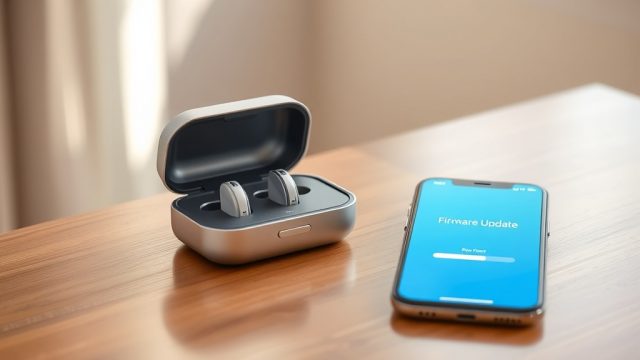
Firmware updates are essential for improving performance, but they can occasionally disrupt Bluetooth pairing. If your HearWell Regeneration hearing aids fail to connect after an update, the problem may be incomplete synchronization. First, ensure both hearing aids successfully completed the update by checking the HearWell Regeneration Firmware Update Guide for common failure solutions.
After verifying the update, perform a manual reset: remove the hearing aids from your phone’s Bluetooth list, turn off Bluetooth, then restart both the hearing aids (by placing them in the case for 5 seconds and removing them) and your phone. Re-enable Bluetooth and attempt pairing again. If the issue persists, the firmware may require a reinstall—use the HearWell app to re-initiate the update while keeping the hearing aids close to the phone.
What to Do When Only One Hearing Aid Connects
Single-ear connectivity is a known frustration, but it has clear fixes. This usually indicates that one hearing aid lost synchronization with the other. Start by ensuring both hearing aids are fully charged and placed correctly in the charging case with the contacts clean. Use a dry cloth to wipe the charging pins if needed.
Next, re-pair both hearing aids as a single unit. Open the HearWell app, navigate to “Device Settings,” and select “Re-pair Both Aids.” This forces the devices to sync. If that fails, reset the hearing aids by inserting them in the case, closing the lid, holding the case button for 15 seconds until the LED flashes red, then releasing. This factory reset clears all connections and requires a fresh pairing—remember to recreate your personalized settings afterward.
| Issue | Severity | Estimated Time to Fix | Recommended Action |
|---|---|---|---|
| Initial pairing failure | Low | 5–10 minutes | Reset case and phone Bluetooth |
| Intermittent dropouts | Medium | 10–20 minutes | Reduce interference, reset Bluetooth module |
| Post-firmware issues | High | 15–30 minutes | Reinstall firmware via app |
| Single ear connection | Medium | 10–15 minutes | Re-pair both aids, factory reset if needed |
| Audio lag or stutter | Low | 5–10 minutes | Adjust audio sync in app |
Why Does Audio Lag or Stutter When Watching Videos?
Audio lag or stuttering during video streaming can ruin the viewing experience. This is often due to Bluetooth codec misalignment between your hearing aids and phone. HearWell Regeneration supports AAC and SBC codecs, but some Android devices default to less efficient codecs. In the HearWell app, go to “Audio Settings” and select “Optimize for Video” to prioritize low latency.
Another cause is background app interference. Close other apps that might be using audio (like music players or voice assistants). Also, disable absolute volume in your phone’s developer options if available—this prevents the phone from overriding the hearing aids’ volume control. For persistent stutter, try turning off Wi-Fi temporarily, as simultaneous Bluetooth and Wi-Fi activity can congest the 2.4 GHz band.
What Owners Say About HearWell Regeneration Bluetooth
Many users report that after initial setup, the Bluetooth connection is stable and reliable. Sarah from Manchester notes, “Once I followed the pairing guide, my HearWell Regeneration connected instantly to my iPhone. Streaming calls is crystal clear.” However, some owners mention occasional dropouts when walking through metal-detecting security gates or crowded public spaces. David from Bristol shares, “I had issues at the train station with interference, but moving my phone to my front pocket fixed it.”
Another common praise is the low latency for phone calls, with users like Emma saying, “The audio syncs perfectly with my voice, no echo.” For those who struggled with firmware updates, the update guide helped them restore connectivity. Overall, the HearWell Regeneration App receives positive feedback for its easy-to-use interface to manage connections. A few owners note that while the app offers robust controls, the custom dome fitting sometimes affects microphone placement, but this does not impact Bluetooth performance.
Frequently Asked Questions
1. Can I pair my HearWell Regeneration with multiple devices?
Yes, the hearing aids can store up to eight paired devices, but only one can be actively connected at a time. To switch, disconnect from the current device and connect to the new one via Bluetooth settings.
2. Why does my HearWell Regeneration keep disconnecting from my Android phone?
Android devices sometimes limit Bluetooth connections to save battery. Go to your phone’s Bluetooth settings, tap the gear icon next to “HearWell Regeneration,” and disable “Battery Optimization” for that connection. Also, ensure the hearing aids are near the phone.
3. How do I reset my HearWell Regeneration Bluetooth completely?
Place both hearing aids in the charging case, close the lid, and press and hold the button on the back of the case for 15 seconds until the LED flashes red. Release the button. This clears all pairings. Then re-pair as new devices.
4. Are HearWell Regeneration hearing aids compatible with TV streamers?
Yes, they are compatible with optional TV streamer accessories that connect via optical or HDMI cables. Pairing is done through the HearWell app. For best results, consult the HearWell Regeneration Telecoil Performance guide for loop system integration.
5. Does sweat or water affect Bluetooth connectivity?
Moisture on the hearing aids’ exterior generally does not impact Bluetooth, but water ingress can damage internal components. The devices are rated IP68 for water resistance, as detailed in the HearWell Regeneration Water Resistance test. However, if the charging contacts are wet, it may interfere with charging, which indirectly affects connectivity.
6. What should I do if my HearWell Regeneration app shows “No Device Found”?
First, ensure Bluetooth is enabled on your phone and that the hearing aids are out of the case and powered on. Restart the app, then try re-pairing. If the issue persists, forget the device in Bluetooth settings and pair again. Also, confirm that the app is updated to the latest version.