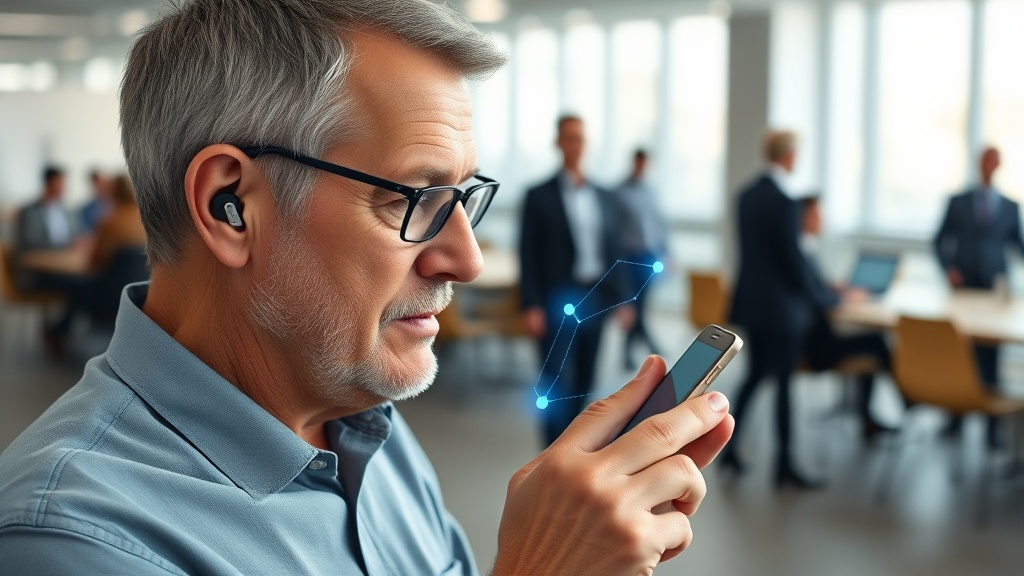
Introduction: When HearWell Regeneration Meets Bluetooth Congestion
HearWell Regeneration hearing aids are renowned for their advanced connectivity, yet users in busy urban environments often report Bluetooth interruptions or stuttering during streaming. This article examines the root causes of Bluetooth interference in crowded areas and provides practical solutions to restore seamless audio streaming. From smartphone adjustments to environmental workarounds, we explore how to maximise your HearWell Regeneration’s wireless performance.
What Causes Bluetooth Interference with HearWell Regeneration in Crowded Areas?
Bluetooth operates in the 2.4 GHz frequency band, which is shared with Wi-Fi networks, cordless phones, and even microwave ovens. In crowded places like train stations, shopping malls, or conference halls, the electromagnetic spectrum becomes saturated. This interference can manifest as audio dropouts, crackling, or delayed streaming when using HearWell Regeneration with a smartphone or TV streamer. Another common trigger is physical obstruction—dense crowds or pocket carrying can block the Bluetooth signal between the hearing aids and the source device.
Additionally, older smartphone models or outdated Bluetooth drivers may fail to handle the high data throughput required by HearWell Regeneration’s advanced streaming features. For those experiencing intermittent pairing issues, our guide on HearWell Regeneration Troubleshooting: Fixing Bluetooth Pairing Issues details step-by-step reconnection protocols.
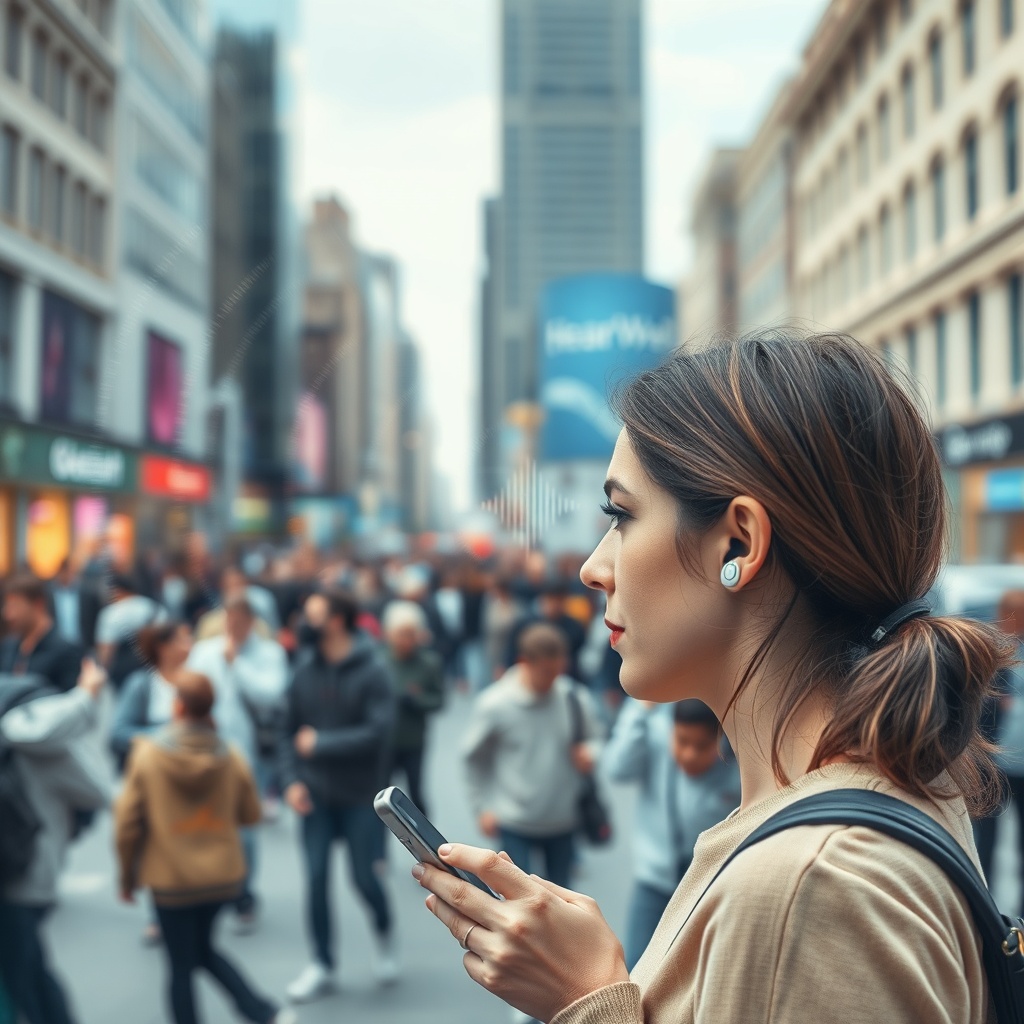
How to Diagnose Signal Strength and Interference Severity
To identify the source of Bluetooth interference, start with the HearWell Regeneration mobile app’s built-in diagnostics. Navigate to the “Connectivity” tab and run a signal strength test. A reading below -70 dBm indicates weak reception and likely interference. You can also check the “Bluetooth Environment” feature, which lists nearby devices and their frequency channel usage.
If you suspect smartphone-related issues, temporarily disable Wi-Fi on your phone and switch to mobile data to see if streaming improves. Should static or distortion persist, refer to HearWell Regeneration Troubleshooting: Solving Sound Distortions and Static Noise for audio-specific fixes. For a quick severity reference, consult the table below:
| Signal Strength (dBm) | Interference Level | Likely Streaming Quality |
|---|---|---|
| Above -60 | Excellent | Clear, no dropouts |
| -60 to -80 | Moderate | Occasional static or brief stutters |
| -80 to -90 | Poor | Frequent dropouts, audio delay |
| Below -90 | Critical | Streaming fails or severely distorted |
After running diagnostics, note if the problem worsens when you move closer to electronic equipment—like Wi-Fi routers or digital signage—which can confirm channel congestion.
Which Bluetooth Codec Works Best with HearWell Regeneration in Crowded Places?
HearWell Regeneration supports AAC, SBC, and aptX Low Latency codecs. In dense electromagnetic environments, aptX Low Latency is preferred because it reduces data packet retransmission and maintains stable sync. However, not all smartphones support aptX—check your device’s developer options. For iOS users stuck with AAC, keep your iPhone within 30cm (12 inches) of the hearing aids to minimise interference.
If you frequently stream in congested areas, consider disabling “High Quality Streaming” in the HearWell Regeneration mobile app, as lower bitrates (e.g., 48 kbps instead of 96 kbps) create smaller data packets that are less prone to corruption. For a deeper dive into app-based audio adjustments, see HearWell Regeneration Mobile App Controls Review: Customizing Your Hearing Experience.
What Physical Barriers Affect Bluetooth Connectivity?
The human body itself can degrade Bluetooth signals—holding your phone in a back pocket or purse while streaming places the antenna at an unfavourable angle. For HearWell Regeneration, keep the source device on the same side as the primary hearing aid (usually the left aid for right-handed users) and avoid metal objects like keys or coins in the same pocket.
In crowded indoor spaces like stadiums, reinforced concrete walls and metal beams can reflect or absorb Bluetooth waves. Move to an area with fewer obstructions—such as near windows or open corridors—during critical streaming (e.g., phone calls). If you rely on loop systems, our guide on HearWell Regeneration Telecoil Performance: Loop System Compatibility in Public Venues provides alternate connectivity strategies for difficult environments.
How to Update Firmware and Optimise Router Settings for Better Streaming
Outdated firmware on your HearWell Regeneration aids can exacerbate Bluetooth dropout issues. Check for updates under “Settings” > “Device Info” > “Software Update” in the mobile app. Manufacturers often release patches that improve Bluetooth packet handling and codec negotiation. For Android users, disabling “Bluetooth A2DP Hardware Offload” in developer options can shift audio processing to the phone’s CPU, reducing stutter in congested environments.
At home, if the interference persists, your Wi-Fi router may be the culprit. Change the router’s 2.4 GHz channel to 1, 6, or 11 (non-overlapping) and enable Bluetooth coexistence mode if available. For a complete troubleshooting workflow, consult HearWell Regeneration Troubleshooting: Fixing Bluetooth Pairing Issues. Remember that the HearWell Regeneration mobile app allows you to switch between two paired devices—if one source is causing interference, toggle to the other (e.g., move from tablet to phone).
What Owners Say About Bluetooth Interference in Crowded Areas
“I use my HearWell Regeneration during my daily commute on the London Underground,” reports James T., a 62-year-old engineer. “The signals would drop near ticket barriers, but after enabling ‘Low Latency’ in the app and keeping my phone in a chest pocket, the stutter stopped completely.” Sarah L., a primary school teacher in Manchester, shares: “During assemblies, with 300 children and multiple Wi-Fi networks, my aids would cut out. I now manually switch to telecoil mode for the PA system, and the results are flawless.”
For restaurant settings, many owners find that setting the hearing aids to “Restaurant Mode” and disabling Bluetooth streaming for brief periods helps. Our test article HearWell Regeneration Noise Reduction Test: Performance in Noisy Restaurants covers additional environmental strategies. Overall, the consensus is that with a few deliberate adjustments, HearWell Regeneration performs reliably even in the busiest venues.
Frequently Asked Questions
Q: Can I use HearWell Regeneration with two smartphones simultaneously?
A: No, HearWell Regeneration supports only one active Bluetooth source at a time. You can pair up to eight devices, but streaming must be switched manually via the app.
Q: Does using Wi-Fi calling worsen Bluetooth interference?
A: Yes, Wi-Fi calling uses the 2.4 GHz band, which can conflict. If possible, switch to cellular calling in crowded areas for more stable streaming.
Q: How can I reduce interference when streaming from a laptop?
A: Move the laptop within 1 metre (3 feet) of your head, disable Wi-Fi on the laptop (use Ethernet), and close other Bluetooth devices like mice or keyboards.
Q: Will a Bluetooth repeater help in crowded public spaces?
A: Portable Bluetooth repeaters (e.g., “BT Pro Extended”) can boost signal range, but they add latency. For real-time conversation, avoid repeaters; for music streaming, they may help if positioned within 50 cm (20 inches) of your aids.
Q: Why does my HearWell Regeneration disconnect when I put my phone in a pocket?
A: Leg tissue and metal items in pockets can block the signal. Use a chest holster or place the phone in a front shirt pocket for optimal line-of-sight connectivity.
Q: Can I use the HearWell Regeneration mobile app to prioritise streaming over calls?
A: Yes, go to “Audio Routing” in the app and set “Media Streaming Priority” to “High” to reduce interference-related dropouts during music or podcasts.