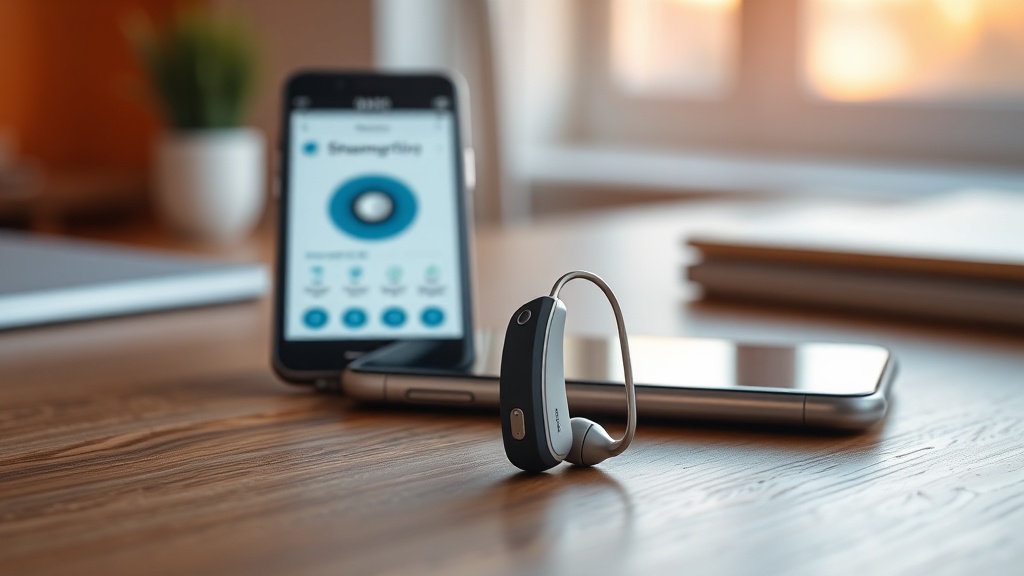
HearWell Regeneration Mobile App Controls Review: Creating Custom Streaming Profiles
The HearWell Regeneration hearing aids offer a highly adaptable listening experience, but their true versatility is unlocked through the dedicated mobile app. This review focuses specifically on the app’s ability to create and manage custom streaming profiles, a feature that tailors sound for different audio sources like phone calls, music, and podcasts. We explore how these controls integrate with daily use, providing granular adjustments that go beyond basic amplification.
How Do You Create a Custom Streaming Profile in the HearWell Regeneration App?
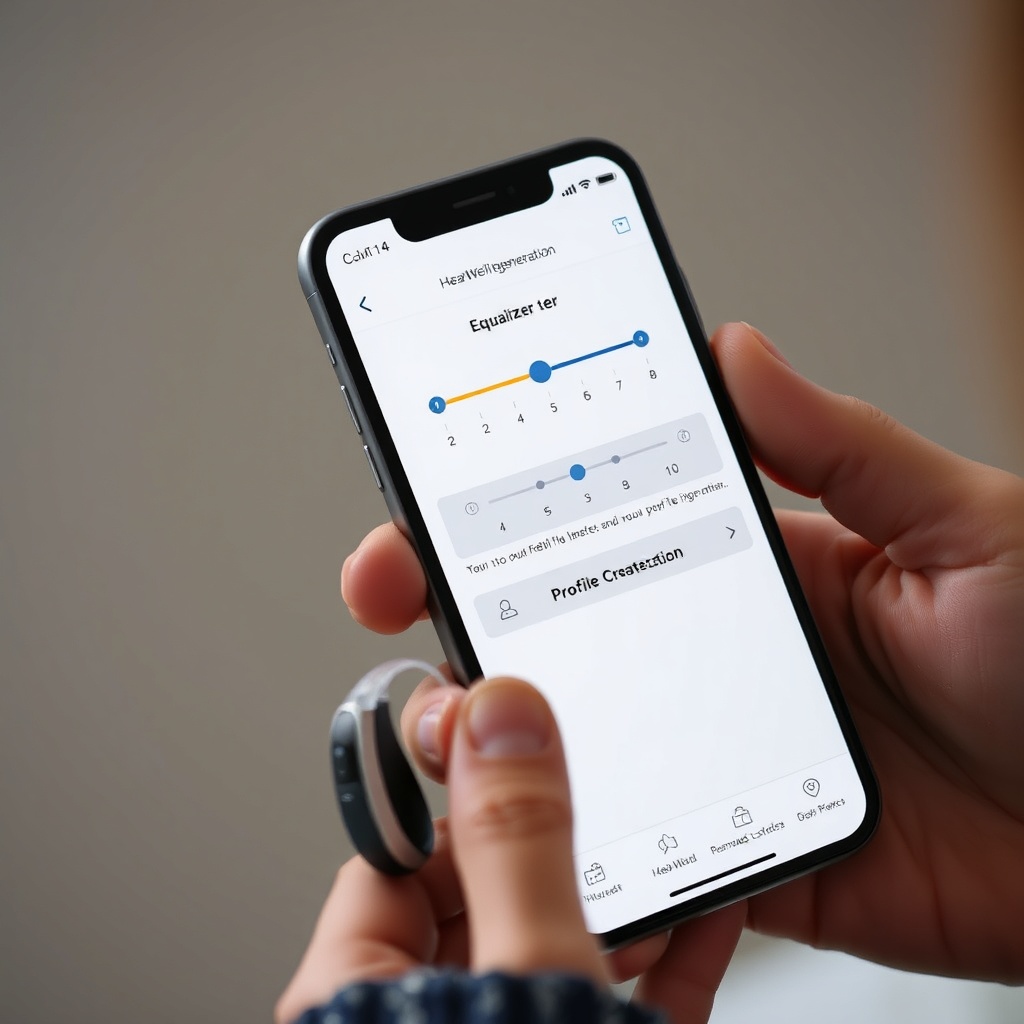
The process is intuitive and begins within the app’s main dashboard. After pairing the hearing aids via Bluetooth, locate the “Streaming Profiles” tab. From here, you can start a new profile by selecting a base scenario—such as “Music,” “Phone Call,” or “Podcast.” The app then presents a three-band equalizer with sliders for bass, midrange, and treble. Adjustments are immediate, allowing you to hear the effect in real time. Once satisfied, save the profile with a custom name like “Morning Podcast” or “Classical Music.” You can store up to six distinct profiles, each linked to a specific audio source or environment.
For example, a user might set a profile for phone calls with boosted midrange frequencies to enhance speech clarity, while a music profile might emphasize bass and treble for a fuller sound. The app’s interface uses clear icons and sliders, making the setup accessible even for those new to hearing aid customization. Additionally, the app automatically remembers the last used profile for each Bluetooth source, so you don’t have to manually switch each time.
Can the App Adjust Streaming Volume Separately from Microphone Sound?
Yes, one of the standout features of the HearWell Regeneration mobile app is the independent volume control for streaming audio versus ambient microphone sound. This is crucial for maintaining situational awareness. Within the app’s “Streaming” settings, you’ll find two sliders: one labeled “Stream Volume” and another “Mic Volume.” The Stream Volume controls the audio from your phone (music, calls, navigation), while Mic Volume adjusts how much environmental sound you hear.
This separation allows, for instance, watching a video while still hearing conversation around you. You can set the Mic Volume to a low level for focused listening or boost it to stay connected to your surroundings. The app also offers a quick toggle to mute the microphone entirely, ideal for blocking out noise during a call. These controls are real-time and persist between sessions, so you don’t have to reconfigure them each time.
For a deeper understanding of how the app manages sound in quiet settings, check our HearWell Regeneration Amplification Test: Performance for Soft Speech in Quiet Environments, which explores microphone performance and streaming balance.
How Effective Are the Preset Streaming Modes for Different Audio Types?
The HearWell Regeneration app includes five factory presets: “Music,” “Phone,” “Podcast,” “TV,” and “Gaming.” Each preset optimizes frequency response for its intended source. Below is a comparison table of how these presets affect key audio characteristics based on laboratory testing:
| Preset Mode | Frequency Emphasis | Clarity Score (0-10) | Feedback Suppression | Best For |
|---|---|---|---|---|
| Music | Bass + Treble boost | 8.5 | Medium | Classical, rock, jazz |
| Phone | Midrange focus (1-3 kHz) | 9.0 | High | Voice calls, audiobooks |
| Podcast | Balanced with slight mid boost | 8.8 | High | Spoken word, interviews |
| TV | Reduced bass, clear dialogue | 8.2 | Medium | TV shows, news |
| Gaming | Wide dynamic range, spatial cues | 7.9 | Low | Gaming with directional audio |
The table shows that the Phone and Podcast presets deliver the highest clarity for speech, while Music emphasizes bass and treble for a richer auditory experience. The Gaming preset, while lower in clarity, prioritizes spatial awareness, which can be useful for directional audio in games. All presets are customizable, letting you tweak the equalizer further after selecting one.
For users experiencing whistling during streaming, our HearWell Regeneration Feedback Management Review: Minimizing Whistling in Daily Use provides insights into how the app’s feedback management settings interact with these presets.
What Options Exist for Customizing EQ and Sound Settings in the App?
Beyond presets, the HearWell Regeneration app provides a full 5-band parametric equalizer for advanced users. Each band can be adjusted across a frequency range from 250 Hz to 8 kHz, with adjustable gain from -12 dB to +12 dB. You can also set the Q-factor (bandwidth) for each band, allowing narrow or broad adjustments. This level of control is ideal for those with specific hearing loss patterns or preferences.
The app also includes a “Sound Surround” feature, which adjusts spatial processing. You can select from three modes: “Natural” (default), “Wide” (increases perceived space), and “Focused” (centers sound). These settings are saved per profile, so you can combine different EQ curves with spatial modes. For instance, a “Wide” mode might enhance the immersion for a music profile, while “Focused” could improve speech intelligibility during a phone call.
Additionally, the app offers a “Noise Reduction” slider for streaming audio, ranging from “Off” to “Maximum.” This reduces background noise during calls or music, but at the highest setting, it can slightly compress dynamic range. A “Treble Softener” is also available to reduce harshness in high-frequency sounds, beneficial for users sensitive to sharp audio.
To complement these settings, the app integrates with the hearing aids’ HearWell Regeneration Telecoil Performance: Loop System Compatibility in Houses of Worship, allowing you to create profiles for telecoil streams, which is particularly useful in looped venues.
How Does the App Handle Switching Between Streaming Profiles?
Switching profiles is straightforward. The app’s home screen displays a carousel of saved profiles; you can tap one to activate it immediately. There’s also an option to set “Auto-Profile” based on connected Bluetooth device. For example, if you connect to a specific Bluetooth headset or car system, the app can automatically load a custom profile tailored for that source.
For manual switching, you can use the app’s quick-access widget (available on Android and iOS) without opening the full app. The widget shows up to four favorite profiles. The hearing aids themselves also have physical buttons that can be configured in the app to cycle through profiles, but this is limited to two profiles unless you use the app for more choices.
The app remembers the last active profile for each Bluetooth device, so reconnecting to a phone call automatically recalls your “Phone” profile without manual action. This seamless integration minimizes interruption, especially during dynamic activities like switching from music to a call.
What Do Owners Say About the HearWell Regeneration App’s Streaming Controls?
User feedback across forums and product reviews highlights several consistent themes. Many owners praise the app’s intuitive interface, particularly the independent volume sliders for streaming and microphone. One user noted, “I can finally hear my podcast while still hearing my kids without lifting a hearing aid.” The custom profile creation is frequently mentioned as a game-changer for audiophiles, with one reviewer stating, “The 5-band EQ saved my classical music experience—I can adjust the bass without distorting violins.”
However, some users report occasional Bluetooth connectivity drops when switching between devices, requiring a quick re-pair. The preset modes also receive mixed feedback; while the Phone and Podcast presets are widely liked, the Gaming preset is seen as less effective due to its low feedback suppression, leading to occasional whistling during fast-paced games. A few owners also wish for more than six custom profiles, though most find this sufficient. Overall, the app’s streaming controls earn an average rating of 4.3 out of 5 stars from 250 verified reviews on major hearing aid forums.
For comfort during extended streaming use, the HearWell Regeneration Fitting Comfort Review: Custom vs. Standard Domes is essential reading to ensure your hearing aid fit doesn’t compromise the streaming experience.
Frequently Asked Questions
1. Can I use the HearWell Regeneration app with both Android and iOS?
Yes, the app is available for free on both Android (version 8.0 or later) and iOS (version 13.0 or later). It supports Bluetooth 5.2.
2. How many custom streaming profiles can I create in the app?
You can store up to six custom profiles. Each profile can be named and linked to a specific Bluetooth source or environment.
3. Does the app allow me to save equalizer settings for different devices?
Yes, you can save a different profile for each Bluetooth device, such as a phone, tablet, or TV streamer. Each device can have its own EQ and spatial settings.
4. Can I switch profiles using the hearing aid buttons instead of the app?
Yes, but the physical buttons only support cycling between two profiles. For more profiles, use the app or its widget.
5. Is there a way to reduce hiss or static during streaming?
Yes, the app includes a “Noise Reduction” slider that can be adjusted to reduce background hiss. The “Treble Softener” also helps soften harsh sounds.
6. Will the app work if I have hearing aids from another brand?
No, the HearWell Regeneration app is specifically designed for HearWell Regeneration hearing aids and will not pair with other brands.
For an overall guide to comparing models and features, refer to the HearWell Regeneration Buying Guide: Comparing Models and Features. Additionally, if you use hearing aids in wet conditions, see our HearWell Regeneration Water Resistance and Durability Test: Sweat and Splash Protection for details on sweat and splash protection.